Updates are the single most important part of keeping a WordPress site secure. They’re also the part owners worry about most, because everyone has heard of an update that broke a website. Both are true, and a simple routine solves both.
This guide covers how to prepare, the order to update in, what to check afterwards and what to do if something goes wrong. It’s the routine behind our website care plans.
Why updates matter
Many WordPress updates fix security problems that are publicly documented once the fix is released. From that point, sites that haven’t updated are easier targets. Updates also keep your site compatible with newer versions of PHP, browsers and the other plugins you rely on.
WordPress applies minor core releases, which are mostly security and maintenance fixes, automatically by default. Major core releases, themes and plugins usually need your attention.
Before you update
Take a fresh backup
Take a full backup of files and database immediately before updating, and confirm it finished. If something breaks, this is how you get back to a working site in minutes.
Read what’s changing
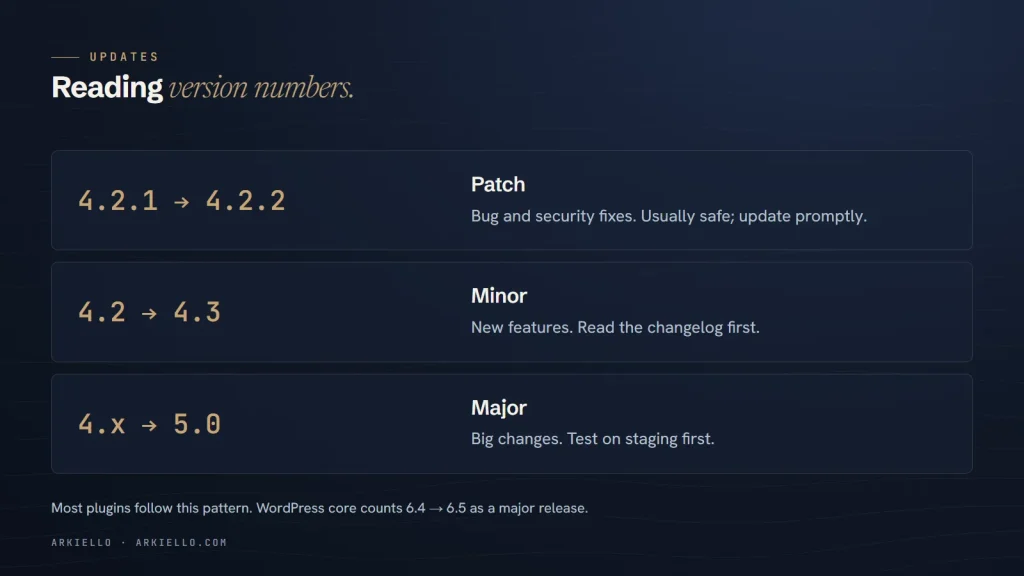
Look at the version numbers and the changelog. A small change, such as 4.2.1 to 4.2.2, is usually a fix. A big jump, such as 4.x to 5.0, can change how a plugin works and deserves more care.
Check compatibility
Page builders, ecommerce plugins and anything that changes how your pages are built are the most sensitive. Check that your theme and key plugins support the new version of WordPress, and that your server meets WordPress’s PHP requirements.
Use a staging site for big updates
A staging site is a private copy of your website where you can test updates first. Many hosts create one in a click. Use it for major WordPress releases, page builder updates and ecommerce updates.
The update itself
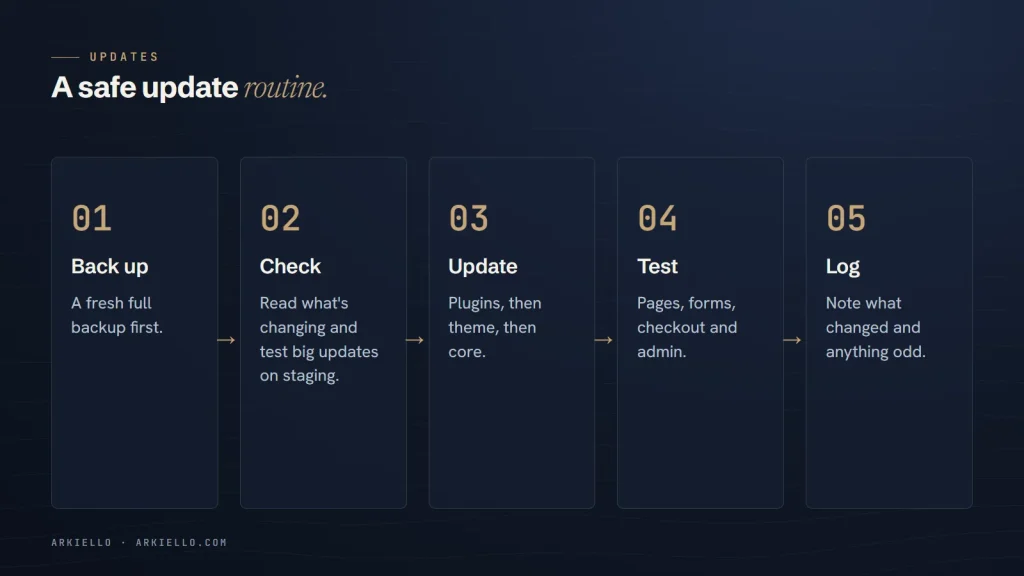
- Choose a quiet time, when few customers are using the site.
- Update plugins first, one at a time for the important ones, checking the site between each.
- Update your theme. If you’ve edited the theme’s files directly, those changes will be lost; use a child theme instead.
- Update WordPress core.
- Clear any caching plugin, server cache or CDN cache so visitors see the updated site.
After updating, check the site
Spend five minutes checking, every time:
- The homepage and your most important pages, on desktop and on a phone
- Your contact form, by sending a test message
- Your shop, booking or checkout flow, if you have one
- The WordPress admin area, including the page editor
- Your site’s error log, if your host shows one
Should you turn on automatic updates?
WordPress lets you turn on automatic updates for individual plugins and themes. They’re a reasonable choice for small, well-maintained plugins on a simple site, because a missed security fix is usually a bigger risk than a rare compatibility problem.
For page builders, ecommerce plugins and anything your site can’t run without, we prefer controlled updates with a backup first and checks afterwards. Whichever you choose, someone still needs to check the site regularly; automatic doesn’t mean unattended.
If an update breaks your site
Don’t panic, and don’t keep clicking update. Then:
- If WordPress emails you about a technical issue, use the recovery mode link in that email to log in and deactivate the plugin or theme that caused it.
- Otherwise, restore the backup you took before updating, or roll back the single plugin that caused the problem.
- Check the plugin’s support forum; others may already have reported the same issue and a fix may be on the way.
- Once the site works, make a note of what happened before you try the update again.
Make it a routine
Safe updates come down to a short routine done consistently: back up, check what’s changing, update in order, test, and keep a log. Our website maintenance checklist shows how updates fit with backups, security and monitoring. And if a site has already been compromised, start with what to do in the first 24 hours after a hack.
Want updates handled every week?
Our website care plans update, back up and check your site every week, with a plain-language report each month. Start with a free website health check.